Toggle doesn't change the real apps; it replaces them. Blocking the real apps is optional, and it closes the gap: with Instagram or TikTok shielded on your Home Screen, the version you open is the one without Reels or For You. Toggle does this with Apple's Screen Time (the Family Controls framework), the same system behind Apple's own App Limits.
How to block the real apps
- Open Toggle and tap Settings (the gear on the launcher).
- Tap Choose apps. The first time, iOS asks you to allow Screen Time access for Toggle.
- Apple's picker opens. Expand Social and Entertainment and tick the apps you use through Toggle (Instagram, YouTube, TikTok, X, Threads, Reddit, LinkedIn, Facebook, Snapchat).
- Tap Done. Those apps are blocked from now on.
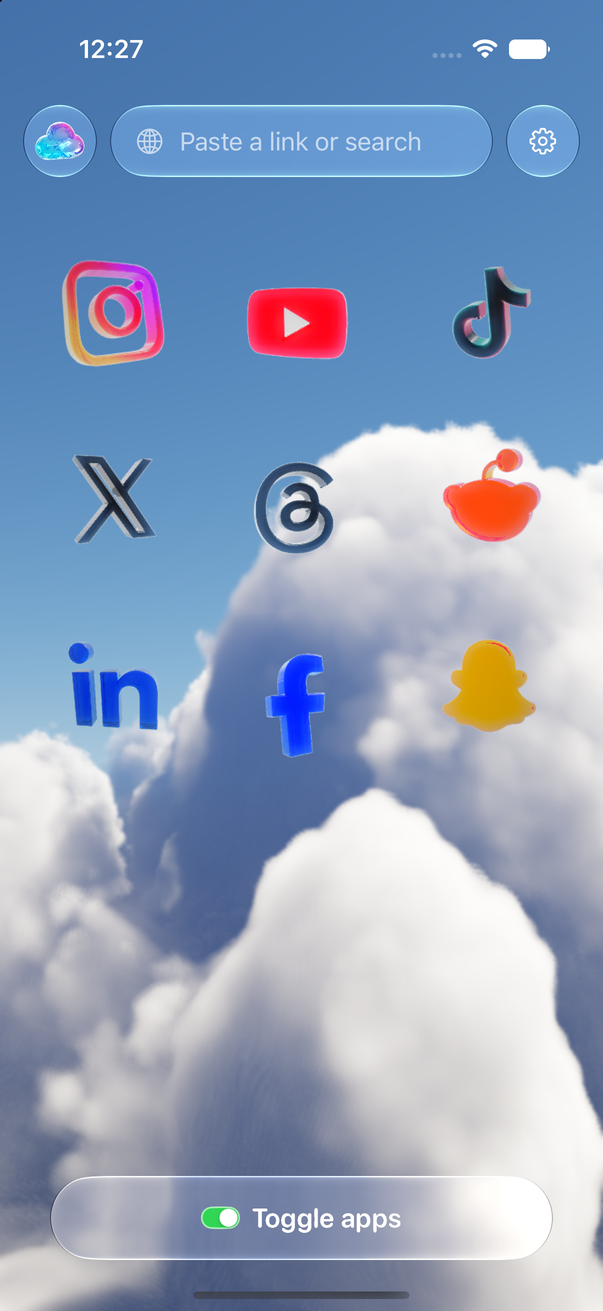
From here the real app's icon still sits on your Home Screen, but tapping it shows a shield instead of the app.
What the shield does
A blocked app opens to a Screen Time shield with Open in Toggle. Tap it and Toggle opens that app's clean version. Tapping a notification from a blocked app does the same. If you miss the notification, Toggle still lands on that app the next time you open it.
Blocked apps' notifications come through Toggle instead, if you have them on. Notifications in Toggle covers the levels.
Unblock for 5 minutes
Settings has Unblock for 5 minutes. The shields drop, and they come back after five minutes, with a notification at the deadline. Use it for the thing you can only do in the real app.
Turning blocking off
In Settings, turn off Block the real apps. Toggle asks first and offers the five-minute break instead; confirm and the shields go. Turn it back on any time from the same switch.
This is self-control, not parental control. The person who set it up can turn it off, and there are no parent and child roles. If you want limits someone else holds, Apple's Screen Time with a passcode does that; Toggle vs Apple Screen Time compares the two.
What Toggle can't see
Apple gives Toggle only opaque tokens for the apps you pick. Toggle can't read which apps they are, how long you use them, or anything else about your Screen Time. The tokens stay on your iPhone. Is Toggle safe? goes through what leaves the phone and what doesn't.
Things to know
- Blocking needs an iPhone on iOS 17 or later; the Chrome and Safari extensions don't block anything.
- A blocked app stays installed with its data. Unblock it and it opens as before.
- Blocking works on this iPhone only. Other devices signed in to the same accounts aren't affected.
- The Toggle switch at the bottom of each app is the way back to the launcher. Hold it for the options sheet. Getting started with Toggle walks through the rest.
Questions
Do I have to block the real apps to use Toggle?
No. Blocking is optional. Toggle works as the clean version of each app whether or not the real one is blocked.
Can I take a break from blocking?
Yes. Settings has Unblock for 5 minutes; the shields come back after five minutes. Turning blocking off asks first and offers the break instead.
Is this parental control?
No. It's self-control: the person who set it up can turn it off. Toggle has no parent and child roles.
What does Toggle learn about the apps I block?
Nothing. Apple hands Toggle opaque tokens for the chosen apps. Toggle can't see which apps they are or how you use them.
Do notifications from a blocked app still arrive?
Yes, through Toggle, if you have notifications on. If a real app is installed and not blocked, Toggle holds back that app's notifications so you don't get two.
Sources
- Toggle: Block Reels on the App Store (accessed 2026-10-24)