Toggle is an iPhone app that opens Instagram, YouTube, TikTok, X, Threads, Reddit, LinkedIn, Facebook and Snapchat inside one app, with the parts built to keep you scrolling switched off. Setting it up takes a few minutes. Here is the path from the App Store to your first app.
Step 1: Install Toggle
Get Toggle from the App Store (search "Toggle: Block Reels", or follow the link at the bottom of this page). It needs an iPhone on iOS 17 or later. Toggle is free to download and paid after the 7-day trial; Pricing has the numbers and how to cancel.
Step 2: Choose your apps and switches
Onboarding asks which of the nine apps you use and what to hide in each. The short-video and recommendation feeds (Reels, Shorts, For You, Explore and the like) are locked: on from the first load, and onboarding explains why. The other switches are yours: Hide Home, Hide Stories, Hide Like counts, Hide Comments, Grayscale and more, app by app. Toggle for iPhone lists every switch per app.
Onboarding also asks how much time you want back each day and shows what that adds up to in years. Nothing locks when you pass the goal; it is a number to aim at.
Step 3: Sign in to each app
Each service opens as its own mobile website inside Toggle. Sign in with the account you already have. Toggle has no account of its own, and your logins stay on your iPhone. Instagram and Threads share one sign-in; every other app takes its own.
Step 4: Open an app from the launcher
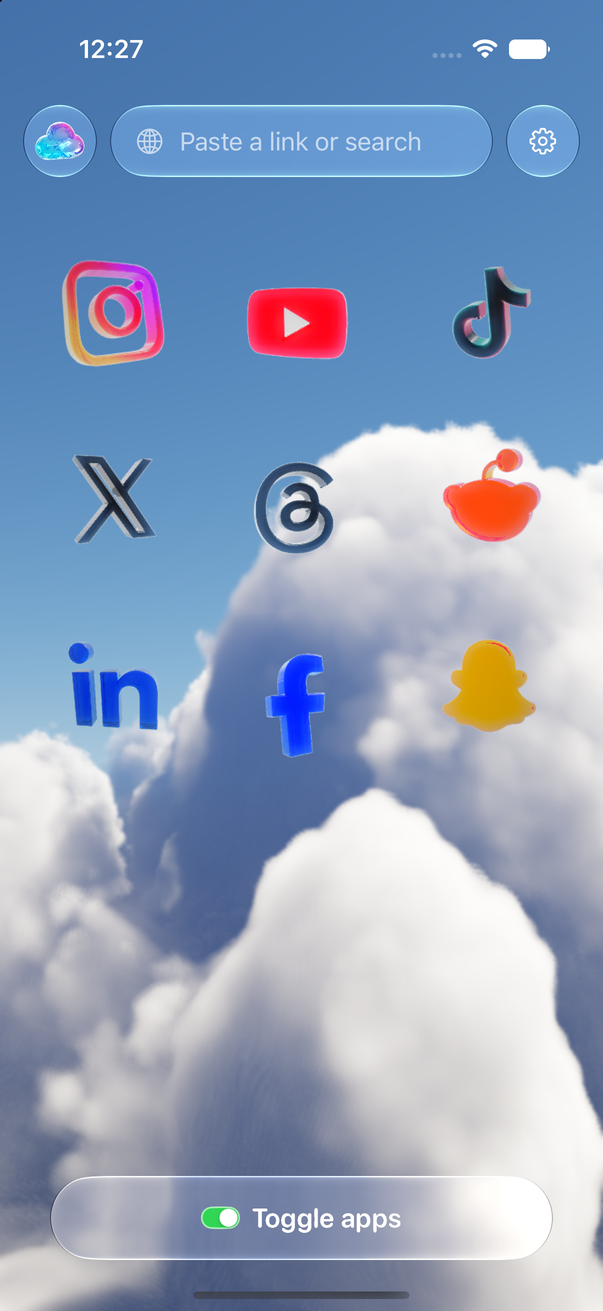
The launcher shows a tile for each app you chose. Tap one and it opens where the quiet part of the app is: YouTube on Subscriptions, TikTok and Threads on Following, LinkedIn on Messaging, Facebook on the most recent feed, the others on Home.
Step 5: Use the Toggle switch
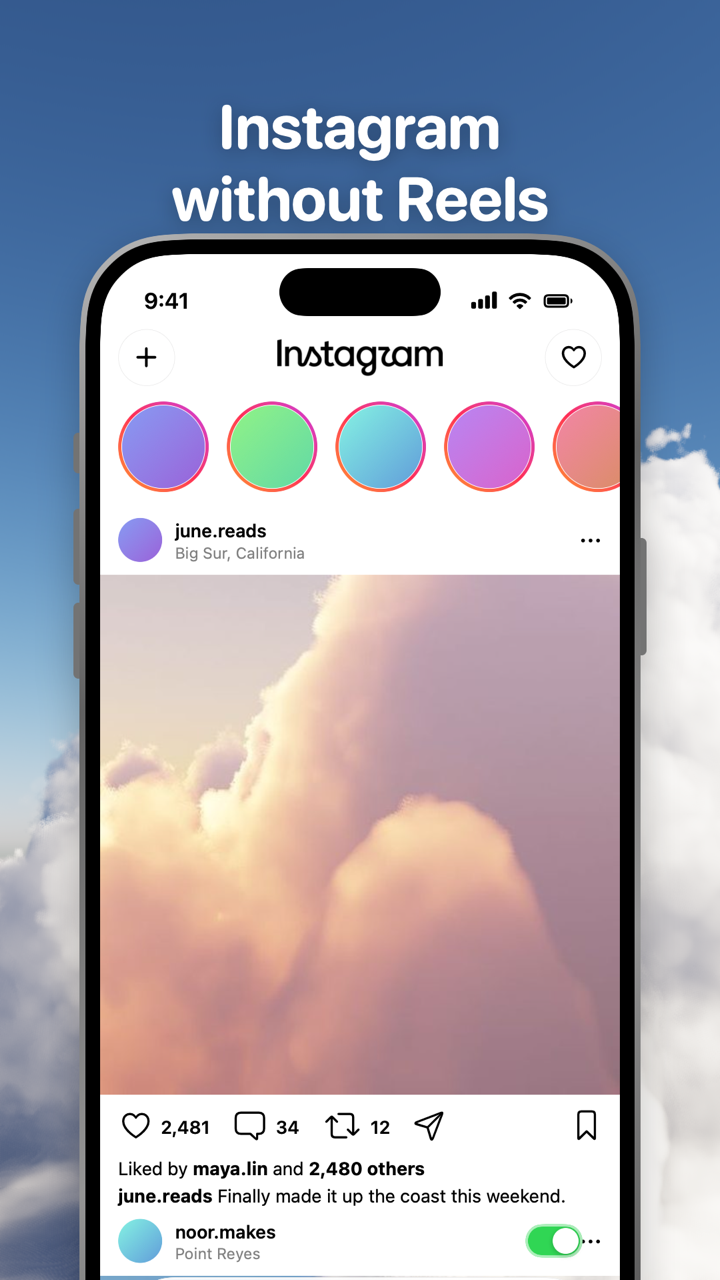
At the bottom of every app sits the Toggle switch. Tap it to go back to the launcher. Hold it for a moment to open the options sheet, where each switch applies at once; a locked switch can be shown for five minutes from here.
What to set up next
- Block the real apps. Settings → Choose apps uses Apple's Screen Time so the clean version is the one you open. Steps in Block the real apps with Screen Time.
- Notifications. Per app: all, messages only, or off. See Notifications in Toggle.
- Home Screen icons. Settings → Add to Home Screen puts an icon per app on your Home Screen that opens straight into Toggle. Allow the download in Safari, then in your iPhone's Settings tap Profile Downloaded and Install.
- Share to Toggle. Links shared from other apps through the share sheet open in the right app inside Toggle.
Sites change, so a switch can stop working until Toggle updates. If something looks wrong, tap Send feedback in Settings or email hello@toggle.social. More questions are answered in the FAQ.
Questions
Do I need a Toggle account?
No. Toggle has no account system. You sign in to each service directly, and those logins stay on your iPhone.
Why can't I turn off Hide Reels or Hide Shorts?
Those switches are locked: on from the first load. From the options sheet or Settings you can show the feed for five minutes at a time, after which the switch turns itself back on.
Is Toggle free?
Toggle is free to download and paid after the 7-day trial: $6.99 a week or $99 a year in the US, handled by Apple. The Chrome and Safari extensions are free.
Does Toggle work on Android or a Mac?
No. The iPhone app runs on iPhone (and iPad in compatibility mode). On a computer, the free Chrome extension does the same on the desktop sites.
Will posting and messages still work?
Yes. Direct messages and posting work on every app, along with profiles, search and notifications.
Sources
- Toggle: Block Reels on the App Store (accessed 2026-10-24)