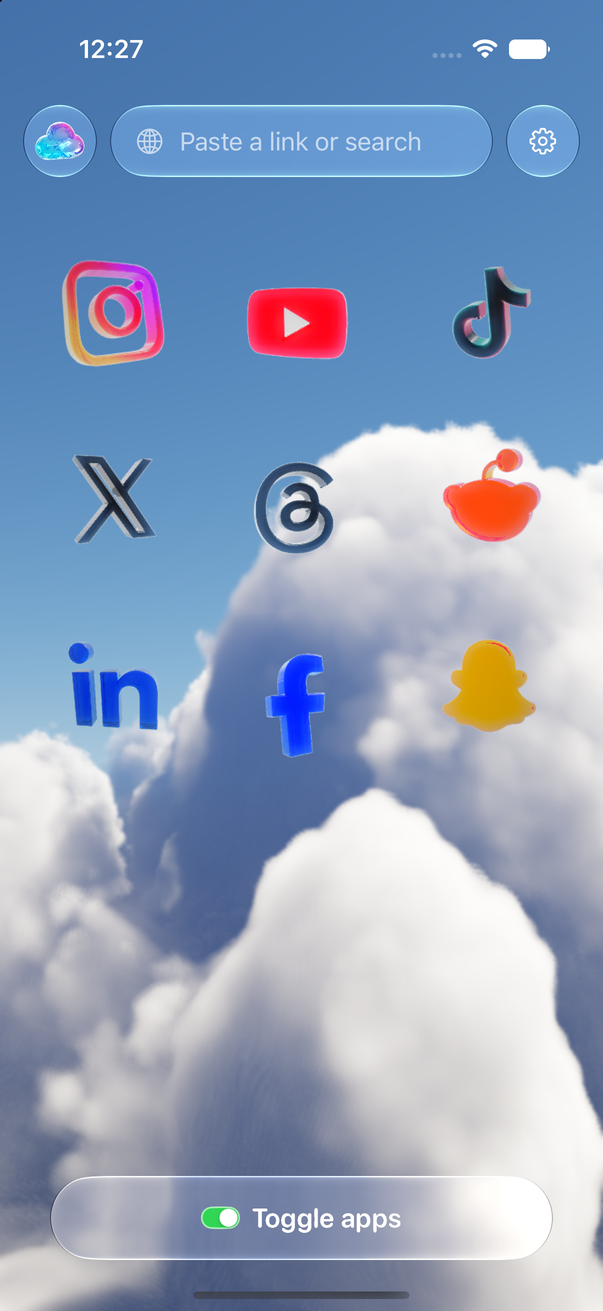
Toggle (toggle.social) is an iPhone app that opens Instagram, YouTube, TikTok, X, Threads, Reddit, LinkedIn, Facebook and Snapchat inside one app, with the parts built to keep you scrolling switched off. On YouTube that means Shorts and recommendations are hidden always, YouTube opens on your Subscriptions feed, and Home, like counts and comments are switches you set yourself. Videos play in their own player, and search, channels, playlists and uploads keep working. This page maps every YouTube surface against what YouTube lets you change, what Toggle hides, and what stays. Two pages go deeper: YouTube without Shorts on iPhone and YouTube with only your subscriptions.
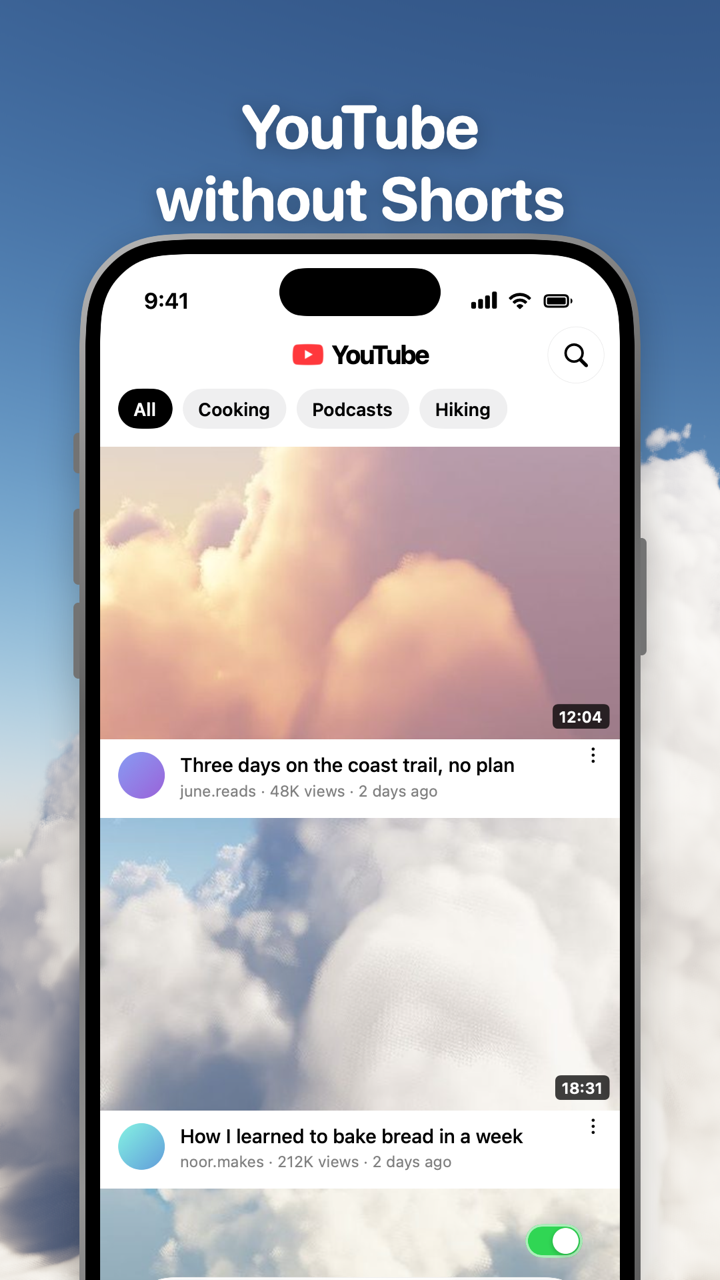
Every YouTube surface, in one table
The rabbit hole is not one feature. It is Home, the Shorts tab, the Shorts shelf inside Home and search, the Up next list beside every video, autoplay, and the end screen that counts down to the next one. YouTube gives you a control for some of these and none for others. The table is checked against YouTube's help centre and Toggle version 1.5 on October 24, 2026.
| Surface | What YouTube lets you change | What Toggle does | What stays |
|---|---|---|---|
| Home feed | Pause watch history (recommendations go), Not interested, Don't recommend channel | Your choice (Hide Home) | Subscriptions, search, Library |
| Shorts tab | Nothing | Hidden always (locked) | Long videos from the same channels |
| Shorts shelf in Home and search | Show fewer Shorts (temporary) | Hidden always (locked) | Search results for videos |
| Recommended videos | Not interested, Don't recommend channel | Hidden always (locked) | The video you chose |
| Autoplay | Settings → Autoplay, or the switch on the player | YouTube's own setting | Playlists play through |
| End screens | Nothing | No switch of its own | The video ends; you choose the next |
| Like counts | Nothing for viewers | Your choice (Hide Like counts) | Your own likes |
| Comments | Nothing for viewers | Your choice (Hide Comments) | Comments open in a native sheet when shown |
| Colour | Dark theme | Your choice (Grayscale) | Everything else |
| Subscriptions, search, channels, playlists, uploads | Normal settings | Untouched, and Subscriptions is the opening page | All of it |
What YouTube's own settings can do
YouTube's controls are spread between the app's Settings, the three-dot menus on videos, and your Google account's activity page. Each one helps and each one stops short. Paths are for the YouTube iPhone app unless noted.
Turn autoplay off. Tap your profile picture → Settings → Autoplay and switch it off. On any video, the Autoplay switch at the top of the player does the same. With autoplay off, a video ends and waits. The Up next list is still there, and the end screen still shows the next video's card.
Pause watch history. At myactivity.google.com, under YouTube History, choose Turn off. YouTube says that with no relevant or significant recent watch history, recommendations on the homepage are removed. Home becomes close to empty. Shorts remain, search works, and the Up next list still fills from whatever you're watching. The trick and its trade-offs belong to YouTube with only your subscriptions.
Tune recommendations. On any video on Home, tap the three dots → Not interested, or Don't recommend channel. YouTube uses the feedback to adjust what it shows; the feedback can be cleared from My Activity. It trains the feed, it doesn't remove it.
Show fewer Shorts. At the top of the Shorts shelf on Home, tap the three dots → Show fewer Shorts. YouTube describes it as reducing Shorts in your recommendations, and the choice can be undone from My Activity under Other activity. The shelf comes back after a while; how long, and every other place Shorts appear, is on YouTube without Shorts on iPhone. There is no setting for the Shorts tab itself.
Take a break and bedtime reminders. Settings → General → Remind me to take a break pauses the video at an interval you pick (every 15, 30, 60, 90 or 180 minutes). Remind me when it's bedtime shows a reminder between a start and end time, either at once or after the current video, and can be snoozed for 15 minutes. YouTube turns both on by default for ages 13 to 17 and off for adults. They interrupt; they don't change the feed.
Subscriptions feed. Tap Subscriptions in the bottom bar. It lists uploads from the channels you follow, newest first, with no recommendations. The app opens on Home every time, so the tab is a habit you have to keep.
What none of these do: remove the Shorts tab, empty the Up next list, or make the app open anywhere but Home.
What Toggle hides on YouTube
Toggle's switches apply per app, at once. Turning a hidden part back on reloads only what needs it. On YouTube the switches fall into two groups, plus the opening page.
Hidden always (locked): Shorts and recommendations. The short-video and recommendation feeds are on from the first load and can't be turned off for good. From the options sheet (hold the Toggle switch at the bottom of any app for a moment) or Settings, a locked switch can be shown for five minutes at a time; it turns itself back on at the deadline. Hide Shorts covers the Shorts tab and the shelves. Hide Recommendations covers YouTube's recommended videos.
Your choice: Home, like counts, comments, Grayscale. These are off when you start. Hide Home removes the Home feed, so YouTube inside Toggle is Subscriptions, search, channels and your library. Hide Like counts removes the numbers under videos; YouTube itself offers viewers no such switch, which is why it sits in the comparison on Hide like counts on every social app. Hide Comments removes the comments under a video; when they are shown, they open in a native sheet. Grayscale drains the colour.
Opens on Subscriptions. Toggle opens YouTube on your Subscriptions feed, not Home. You see the channels you chose, newest first, and nothing is ranked for you.
Beyond the switches, many ad and tracking requests are blocked inside Toggle, and on a slow connection Toggle loads smaller images and fewer videos ahead.
What keeps working
Toggle opens YouTube as its own mobile website inside the app, signed in with your own Google account, and restyles it to look and feel like an app: a native tab bar and header, comments in a native sheet. Your login stays on your iPhone; Toggle has no account system. YouTube videos play in their own player with a mini player, so you can keep a video going while you look at a channel or search. Search, channel pages, playlists and your library work. Posting works: YouTube upload opens the desktop Studio page inside Toggle. Notifications are optional and come per app: all, messages only (replies, comments, mentions), or off; the details are on Notifications in Toggle.
Because Toggle uses YouTube's mobile website, a few app-only features may be missing. YouTube changes often, so a switch can stop working until Toggle updates.
What about the real YouTube app?
Optional, and separate from the switches: Toggle can shield the real YouTube app with Apple's Screen Time, so the only way in is the version without the feeds. The shield, the five-minute break and what Apple lets Toggle see are on Block the real apps.
Who this is not for
Toggle is iPhone only (iOS 17 or later) and paid after the 7-day trial (pricing); on a computer the free Chrome extension gives youtube.com the same switches. It runs YouTube's mobile site, so an app-only feature can be missing, and a switch can break when YouTube changes its pages until Toggle updates. It is not parental control. The full list of limits is on Toggle for iPhone.
Where to go next
- YouTube without Shorts on iPhone: every Shorts entry point and what Show fewer Shorts does.
- YouTube with only your subscriptions: the watch-history trick, bookmarking the feed, and Toggle's opening page.
- Block Reels and Shorts on iPhone: every app at once: Shorts beside Instagram Reels, Facebook Reels and TikTok's For You.
- Toggle for Chrome: the same switches on youtube.com, free.
- Toggle for iPhone: the app itself, with every switch for every app.
Questions
Can you turn off YouTube Shorts?
Not in YouTube's settings as of October 24, 2026. On the Home shelf, the three dots offer Show fewer Shorts, which is temporary. Toggle hides Shorts every time YouTube opens.
How do I make YouTube show only my subscriptions?
In the YouTube app, tap Subscriptions in the bottom bar each time; the app opens on Home. Toggle opens YouTube on Subscriptions and can hide Home altogether.
Does turning off watch history remove YouTube's Home feed?
Mostly. YouTube says that with no significant watch history, recommendations on the homepage are removed. Search still works and Shorts remain.
How do I turn off autoplay on YouTube?
Tap your profile picture, then Settings, then Autoplay, and switch it off; or use the Autoplay switch at the top of the player on any video.
Does YouTube still play videos normally inside Toggle?
Yes. YouTube videos play in their own player with a mini player, search and channel pages work, and uploading opens the desktop Studio page inside Toggle.
Is Toggle free?
The iPhone app is free to download and paid after the 7-day trial. The Chrome extension, which hides Shorts and Home on youtube.com, is free.
Sources
- Remove recommended content from Home (YouTube Help) (accessed 2026-10-24)
- Manage your recommendations and search results (YouTube Help) (accessed 2026-10-24)
- Autoplay videos (YouTube Help) (accessed 2026-10-24)
- View, clear, or pause watch history (YouTube Help) (accessed 2026-10-24)
- Take a break reminder (YouTube Help) (accessed 2026-10-24)
- Set a bedtime reminder, iPhone and iPad (YouTube Help) (accessed 2026-10-24)